Make your own pop-up storybook with AI
Everything I used to make “Jesus Calms the Storm”: the story template, every prompt, and the fixes for what went wrong along the way.
1Before you start
A pop-up storybook here is a web page that looks and feels like a real book on a desk. Pages turn in 3D, scenes fold up off the page, and you can add a pull tab, sounds and narration. Anyone can open it with a link, on a phone, tablet or laptop.
You don’t need to code. You describe the book, and AI writes it for you. There are two ways to do it:
Claude only
Claude builds the whole book and draws simple cut-paper shapes itself. The narration uses your browser’s built-in voice.
- Free with a Claude account
- About 30 minutes
- Great for a first book
Claude + Higgsfield
Claude builds the book, and Higgsfield makes the illustrations and a real narrator’s voice.
- Needs Higgsfield credits
- About 2 hours
- My book: 14 images, 12 cut-outs, 7 voice clips
2Your story template
Fill this in before you open Claude. Short is good: 6 spreads, one moment each, one or two sentences per spread.
| Title | |
|---|---|
| Who it’s for (age, occasion) | |
| Spread 1: the beginning | |
| Spread 2: the setting | |
| Spread 3: the problem appears | |
| Spread 4: it gets worse | |
| Spread 5: the turning point (your pull tab) | |
| Spread 6: the ending and the lesson | |
| Colours | |
| Art style |
2Example: how I filled it in
My template for “Jesus Calms the Storm”.
| Title | Jesus Calms the Storm |
|---|---|
| Who it’s for | Children aged 3 to 8, at bedtime |
| Spread 1 | At the end of a long day by the sea, Jesus said to his friends, “Let’s sail across to the other side.” |
| Spread 2 | The little boat rocked softly on the water. Jesus was tired, so he rested his head on a cushion and fell fast asleep. |
| Spread 3 | Then a great storm came. The wind howled, and the waves stood up like mountains. |
| Spread 4 | Water splashed into the boat. “Teacher!” his friends cried. “Don’t you care that we are sinking?” |
| Spread 5 (pull tab) | Jesus woke up. He stood and spoke to the wind and the waves: “Peace! Be still!” Pulling the tab calms the storm. |
| Spread 6 | At once, the wind stopped and the sea was calm. “Who is this?” his friends whispered. “Even the wind and the waves obey him!” Closing line: when you feel afraid, remember: Jesus is in your boat too. |
| Colours | Navy, cobalt blue, cream and gold |
| Art style | Layered cut paper |
3Path A: Claude only
Copy each prompt into Claude and fill in the parts in [brackets].
Ask Claude to build the book
Paste your story into this prompt. Claude writes the whole book as one web page you can open and play with straight away.
Build me an interactive 3D pop-up storybook as a single web page.

Story: [TITLE]
Text for each spread:
1. [Spread 1 text]
2. [Spread 2 text]
3. [Spread 3 text]
4. [Spread 4 text]
5. [Spread 5 text]
6. [Spread 6 text]

- Show the book lying open on a wooden desk, seen from slightly above, with a cover I tap to open.
- Pages turn in 3D when I tap or swipe.
- On each spread, the scene pops up off the page in layers (back, middle, front) like a real pop-up book, and folds flat as the page turns.
- Draw the scenes yourself in a simple cut-paper style using [YOUR COLOURS].
- Add a pull tab on spread [NUMBER] that [WHAT IT CHANGES].
- Add Back / Next buttons and page dots.
Add sound and narration
Add sound to the book:
- An "Enable sound" button with gentle background sounds that match each page, and a soft page-turn sound.
- [On the storm pages: rain and thunder, with a flash of lightning.]
- A volume slider for the sound effects next to the sound button.
- A "Read to me" button that reads each page aloud.
Polish it
Open the book, play with it, then ask for changes in plain words. Claude updates the same book each time. Some I used:
Make these changes to the book:
- Make the story text a little bigger and easier to read.
- Put [YOUR BRAND NAME] and a small logo on the cover.
- Add a closing page that says: [YOUR CLOSING LINE].
- Make sure it works well on a phone.
4Path B: Claude + Higgsfield
Do Path A first. Then connect Higgsfield to Claude (in Claude, open the connectors settings and connect Higgsfield) and carry on here.

Make a style sample
Pick the look for the whole book. Ask for two versions and choose your favourite.
Use Higgsfield to make one sample image of [SCENE, e.g. the storm spread] as an open children's pop-up book on a wooden table, in a [STYLE, e.g. layered cut-paper] style with [YOUR COLOURS]. Visible paper texture, soft shadows between layers, cosy bedtime mood, no text. Make 2 versions so I can pick one.
Make each pop-up layer separately
One flat picture can’t pop up, but separate layers can. Do this for every spread.
Use the version I picked as the style reference. Make each pop-up layer of spread [NUMBER] as its own image on a plain white background, with no book, table or text:
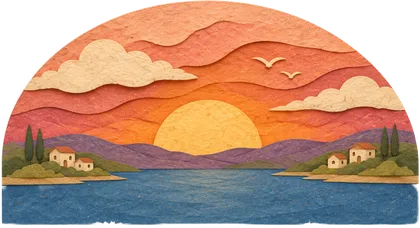
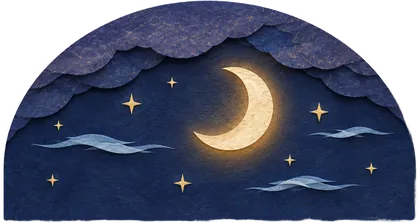
- Back: [e.g. storm clouds with a gold lightning bolt]
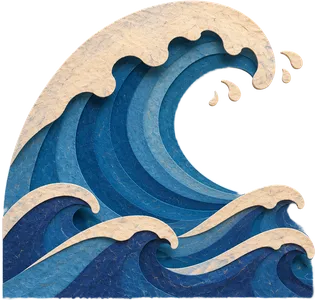
- Middle: [e.g. one big curling wave]
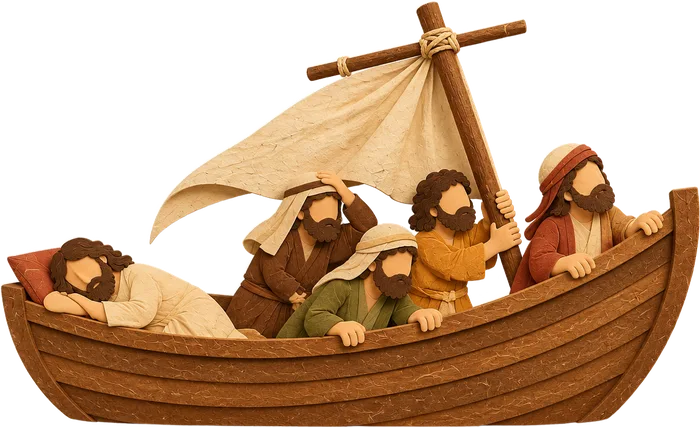
- Characters: [e.g. the boat with Jesus asleep and the disciples]
- Front: [e.g. a long strip of waves]
Then remove the background from each one so they are clean cut-outs.
The cut-out layers in my book
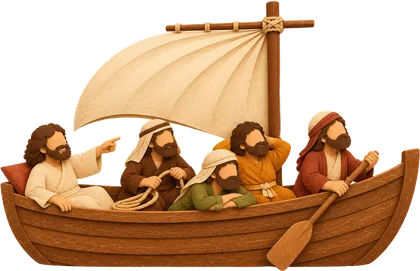
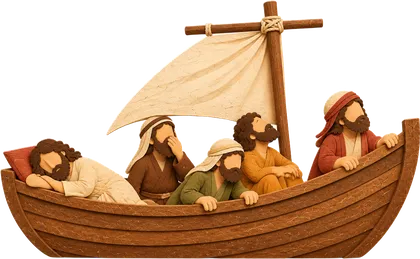
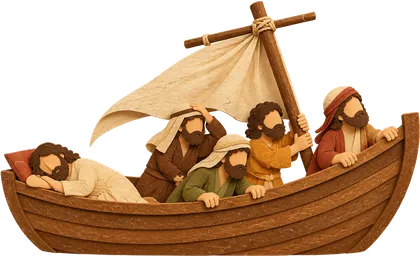
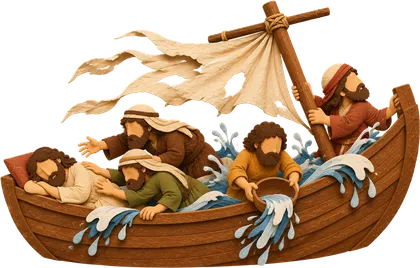
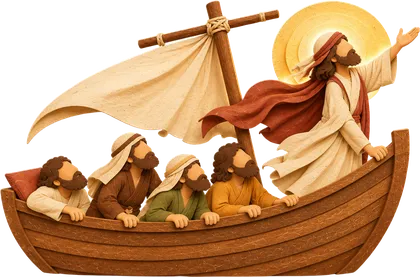
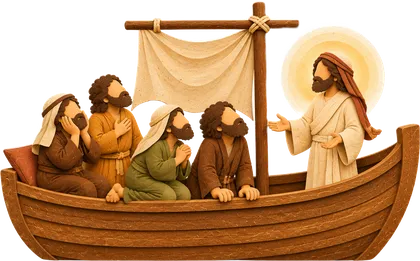
For the storm book I generated 14 images in Higgsfield: 2 style samples to choose the look, then 12 layers. Each layer had its background removed (12 cut-outs), and Claude placed them into the 6 spreads. Some layers are used on more than one page.



Record the narration
Pick a Higgsfield voice you like. I used Arthur.
Use Higgsfield to record the narration in the [VOICE NAME] voice: one clip per page, using exactly the story text, plus a short title intro for the cover ("[TITLE]. A [BRAND] bedtime story.").Put it all into the book
Put the Higgsfield layers and narration into my pop-up book, replacing your drawings and the browser voice. Keep the pop-up, page turn, pull tab, sound effects and volume slider working. For the pull-tab spread, fade from the "before" layers to the "after" layers as the tab is pulled.
5When things go wrong
These all happened to me while making the storm book.
7What’s next
Rather have one made for you?
I make custom pop-up storybooks: your story, your names, your faith and values.
US$17 per book
Email admin@creatorvarsity.com
New tutorials every week on YouTube: youtube.com/@creatorvarsity
Made something? I’d love to see it. Reply to my email with your link.